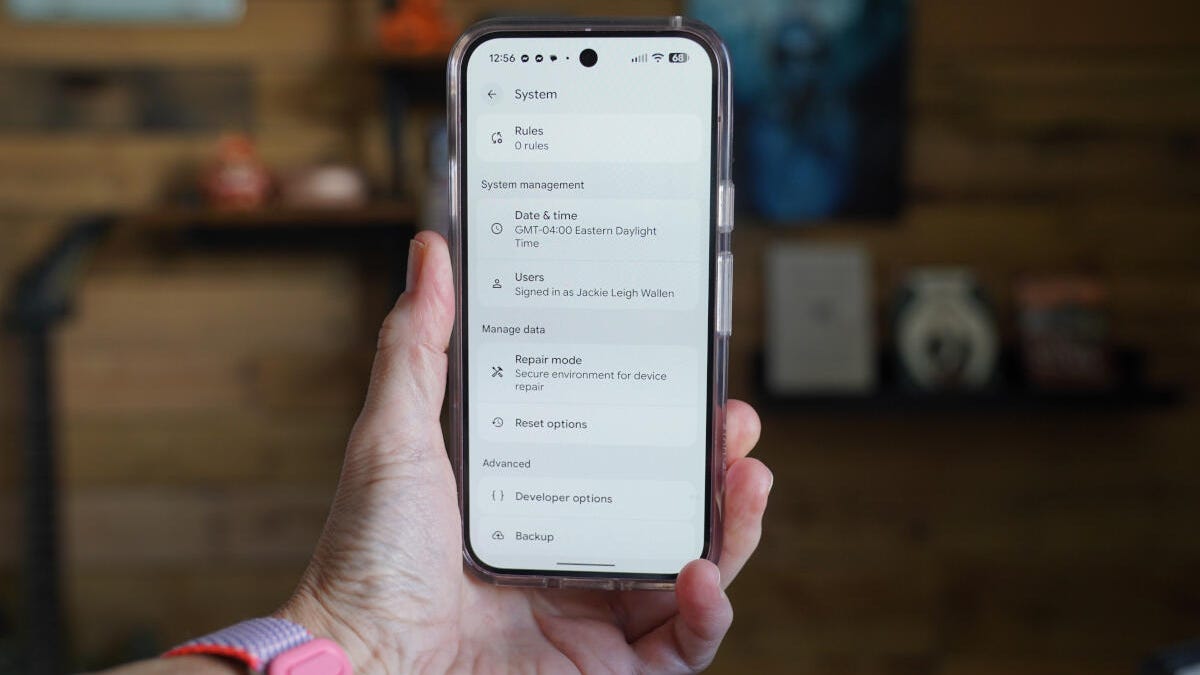
On May 4, 2026 Jack Wallen outlined a pair of built‑in Developer Options — the three animation scales and the Background process limit — that can noticeably improve responsiveness on Android devices without installing third‑party optimizer apps.
Jack Wallen on May 4, 2026 published a short how‑to showing that a quick change to two settings already present in Android’s Developer Options can make a slow phone feel noticeably faster. His approach avoids third‑party “optimizer” apps, which often deliver little benefit and can introduce security risks, by relying solely on system controls to reduce perceived lag and free resources.
Accessing these controls requires unlocking Developer Options. Wallen lays out the usual method: open Settings, go to About Phone, find Build Number and tap it seven times; Developer Options then appears (commonly under Settings >System). The Build Number entry also identifies the device’s release family and code branch, which can be useful when troubleshooting performance differences across firmware builds.
The first set of controls affects animations. Developer Options exposes three animation scales — Window animation scale (controls pop‑ups and dialogs), Transition animation scale (controls screen and app switching), and Animator duration scale (controls internal UI animations such as fades and loading icons). These scales are set to 1x by default; Wallen suggests trying 0.5x or turning them off to reduce perceived lag. Reducing or disabling animations does not increase raw CPU speed, but it shortens or removes visual delays so the interface feels snappier.
The second control is Background process limit, found in Developer Options under Apps. Its default is “Standard limit.” For devices with limited RAM — Wallen specifically calls out phones with 4GB or less-selecting “At most 4 processes” can improve throughput by restricting how many apps run in the background while preserving basic multitasking. He advises against extreme limits (for example, a single background process) because such settings break normal multitasking and prevent background work from completing reliably.
Wallen notes that his Pixel 9 Pro performs well under normal circumstances, but he has used lower‑end phones that struggled to keep up. Those older or lower‑RAM devices are the ones most likely to benefit from modest changes to animation scales and the background process limit, since the tweaks reduce visible lag and lower memory pressure without adding extra apps.
There are tradeoffs to consider: disabling or shortening animations makes transitions feel abrupt, and limiting background processes can delay notifications, background syncs and multitasking. Wallen’s practical recommendation is to make conservative adjustments (for example, 0.5x animations and up to four background processes), test the phone’s behavior, and fine‑tune settings until you find an acceptable balance between responsiveness and background functionality.
Sources
Replies (0)
No replies in this topic yet.
